The Technical SEO Audit Checklist for B2B SaaS Websites
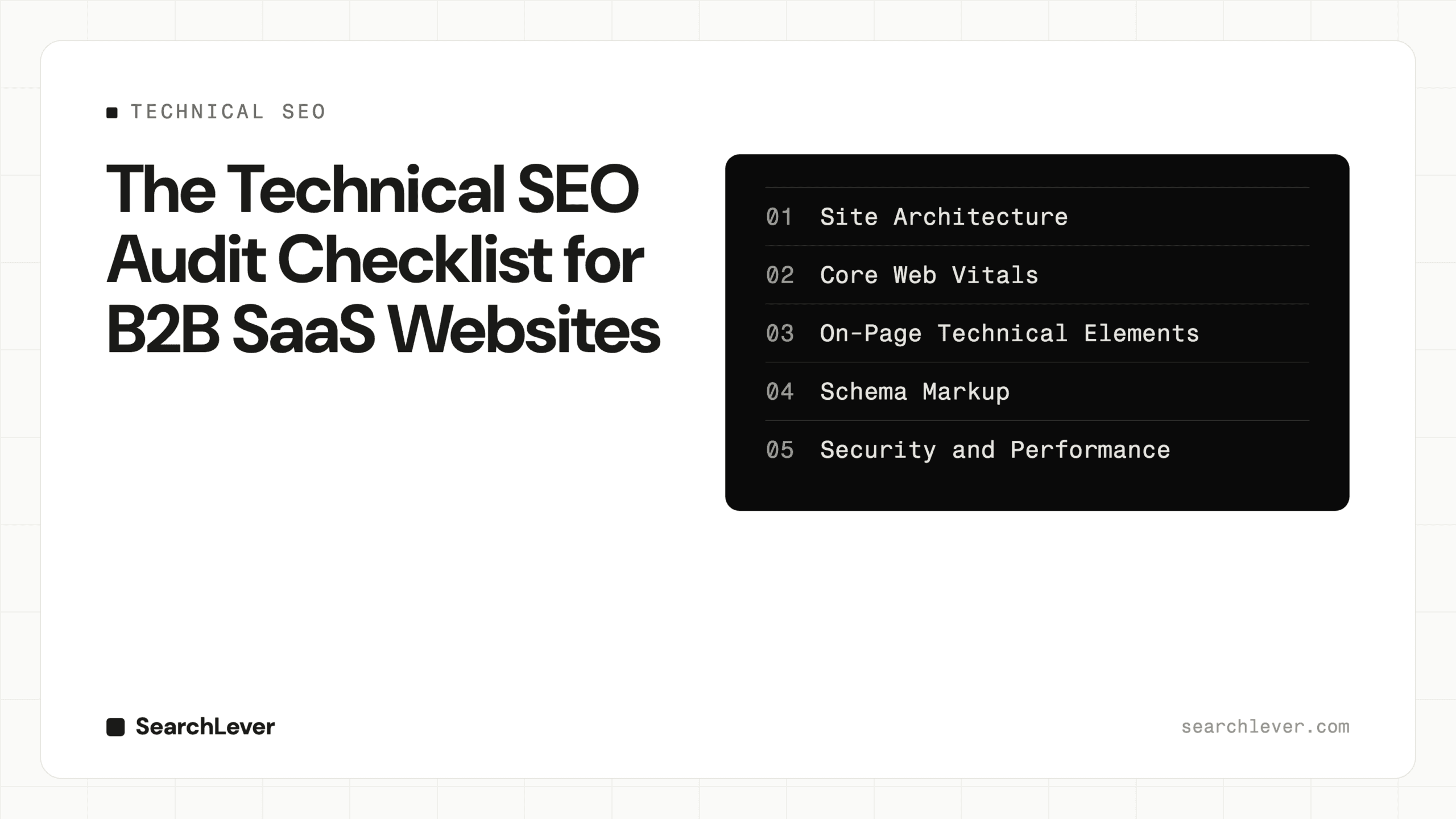
Table of Contents
- 1. Crawlability and Indexation
- 1.1 robots.txt Configuration
- 1.2 XML Sitemap
- 1.3 Crawl Errors
- 1.4 Noindex Tags
- 1.5 JavaScript Rendering
- 1.6 Orphan Pages
- 2. Site Architecture
- 2.1 URL Structure
- 2.2 Internal Linking Depth
- 2.3 Faceted Navigation and Filter Pages
- 2.4 Pagination Handling
- 2.5 Breadcrumbs
- 3. Core Web Vitals
- 3.1 Largest Contentful Paint (LCP)
- 3.2 Interaction to Next Paint (INP)
- 3.3 Cumulative Layout Shift (CLS)
- 4. On-Page Technical Elements
- 4.1 Title Tags
- 4.2 Meta Descriptions
- 4.3 Heading Tags (H1)
- 4.4 Canonical Tags
- 4.5 Hreflang Tags
- 4.6 Open Graph and Twitter Card Markup
- 5. Schema Markup
- 5.1 Organization Schema
- 5.2 Article and BlogPosting Schema
- 5.3 FAQ Schema
- 5.4 SoftwareApplication Schema
- 5.5 BreadcrumbList Schema
- 6. Security and Performance
- 6.1 HTTPS Everywhere
- 6.2 HTTP/2 or HTTP/3
- 6.3 Image Optimization
- 6.4 Font Loading Strategy
- 6.5 Third-Party Script Impact
- 7. Mobile and Accessibility
- 7.1 Mobile-Friendly Layout
- 7.2 Viewport Meta Tag
- 7.3 Touch Targets
- 7.4 Image Alt Text
- 7.5 Semantic HTML
- Running the Audit: Recommended Toolchain
- Prioritization Framework
- Want Us to Run This Audit for You?
- Conclusion
Most B2B SaaS companies treat SEO as a content problem. They publish blog posts, build landing pages, and wonder why organic traffic plateaus after six months. The issue is rarely content. It is almost always technical.
A technical SEO audit is the process of systematically evaluating the infrastructure that determines whether search engines can crawl, render, index, and rank your pages. For SaaS websites — with their JavaScript-heavy frontends, gated app routes, and dynamically generated pages — the technical layer is where most ranking potential is either captured or silently lost.
This checklist is built for the people who actually own the website: technical marketers, engineering leads, and CTOs at B2B SaaS companies. Every item has a clear pass/fail criterion, a tool to verify it, and a brief explanation of why it matters. No vague advice. No “it depends.” If your site passes every item on this technical SEO audit checklist, you have eliminated the infrastructure-level blockers that prevent your content from ranking.
We use this exact checklist when running a full SEO audit for our clients. Here is the complete version.

1. Crawlability and Indexation
Search engines cannot rank what they cannot find. This section of the technical SEO audit covers the mechanisms that control which pages Googlebot discovers, whether it can render them, and whether they enter the index.
1.1 robots.txt Configuration
Pass criteria: Marketing pages, blog posts, landing pages, and product pages are all crawlable. Only private application routes (/app/, /dashboard/, /admin/, /api/) are disallowed.
How to verify: Open yourdomain.com/robots.txt in a browser. Use Search Console’s robots.txt tester under Settings > Crawling to confirm Googlebot’s interpretation matches your intent.
Common SaaS mistakes: Blocking /app/ with a wildcard that also catches /application-security/. A staging robots.txt (Disallow: /) deployed to production. Blocking CSS/JS files Googlebot needs to render. Treat robots.txt as infrastructure code — version-controlled and reviewed in PRs.
1.2 XML Sitemap
Check: Validate your XML sitemap at yourdomain.com/sitemap.xml.
Pass criteria:
– Returns HTTP 200 with valid XML
– Contains only indexable, canonical URLs (no 404s, no redirects, no noindexed pages)
– Segmented by content type (pages, blog posts, comparison pages) if you have more than 500 URLs
– Submitted in Google Search Console
– Referenced in robots.txt with a Sitemap: directive
How to verify: Open the sitemap in Screaming Frog (Mode > List > Upload > Sitemap). Crawl URLs and check for non-200 status codes, noindex tags, and non-canonical URLs. In Search Console, go to Sitemaps and confirm “Success” status.
For SaaS websites running programmatic SEO with hundreds of pages, sitemap segmentation is how you signal to Googlebot which sections deserve recrawling.
1.3 Crawl Errors
Check: Review the Pages report in Google Search Console under Indexing.
Pass criteria: No pages with “Crawled – currently not indexed” or “Discovered – currently not indexed” status that should be ranking. Soft 404 count is zero for real content pages.
How to verify: In Search Console, go to Indexing > Pages. Filter by “Not indexed” and review each reason:
– “Crawled – currently not indexed” — Google found the page but decided it was not worth indexing. Usually indicates thin content.
– “Blocked by robots.txt” — Cross-reference with your robots.txt rules.
– “Soft 404” — Google thinks the page is an error page even though it returns HTTP 200.
1.4 Noindex Tags
Check: Scan all pages for <meta name="robots" content="noindex"> tags and X-Robots-Tag: noindex HTTP headers.
Pass criteria: No revenue-generating or content pages carry a noindex directive. Only utility pages (thank-you pages, internal search results, tag archives) are noindexed.
How to verify: Screaming Frog full crawl, filter by “Noindex.” Cross-reference every noindexed URL against your sitemap — if a URL is in both, that is a conflict that needs resolution.
CMS migrations, staging flags that leak to production, and developers who noindex a page “temporarily” and forget to remove it — these are routine findings in every technical SEO audit we run.
1.5 JavaScript Rendering
Check: Verify that Googlebot can see the same content you see in a browser.
Pass criteria: The rendered DOM (what Googlebot sees after executing JavaScript) contains all critical content: headings, body text, internal links, and structured data.
How to verify: Search Console URL Inspection tool on 5-10 representative pages — compare “Rendered HTML” with what Chrome shows. Or disable JavaScript in Chrome DevTools (Settings > Debugger) and reload. If the page is blank or missing key content, you have a rendering problem.
SaaS sites built on React, Next.js, Vue, or Angular are especially prone to this. Client-side rendered applications that fetch content after the initial page load are the highest risk. If your marketing site is a single-page application without server-side rendering or static generation, expect indexation problems.
1.6 Orphan Pages
Check: Identify pages that exist on your site but are not reachable through any internal link.
Pass criteria: Every page in your sitemap is reachable from at least one other page via an HTML link. No content page has zero internal links pointing to it.
How to verify: Screaming Frog full crawl, then Orphan Pages report (upload your sitemap as a list and compare against crawled URLs). Any URL in the sitemap but not discovered during the crawl is an orphan.
Orphan pages are common after redesigns, URL migrations, or when blog posts are published without being linked from category or pillar pages. Without internal links, they carry no PageRank and rarely rank for anything competitive.
2. Site Architecture
Architecture determines how authority flows through your site and how efficiently both users and crawlers navigate your content. This section of the seo audit checklist covers the structural decisions that compound over time.
2.1 URL Structure
Check: Review your URL taxonomy for consistency, hierarchy, and keyword alignment.
Pass criteria:
– URLs use lowercase, hyphen-separated words
– URLs follow a logical hierarchy (e.g., /blog/category/post-slug, /product/feature-name)
– No parameter-heavy URLs for content pages (e.g., /page?id=1234)
– No unnecessary nesting beyond three levels deep
How to verify: Export your URL list from Screaming Frog, sort by path depth. Flag URLs exceeding four directory levels. Scan for inconsistencies: mixed casing, underscores, inconsistent trailing slashes.
For SaaS companies running programmatic SEO — generating hundreds of integration, location, or comparison pages — URL structure is foundational. A clean pattern like /integrations/{tool-name} or /compare/{product-a}-vs-{product-b} tells Google what each page is about before reading the content.
2.2 Internal Linking Depth
Check: Measure how many clicks it takes to reach any content page from the homepage.
Pass criteria: All important pages are reachable within three clicks of the homepage. No content page requires more than four clicks.
How to verify: In Screaming Frog, check the “Crawl Depth” column. Sort descending. Any page at depth 4 or greater should be evaluated: is it important enough to warrant better internal linking, or is it genuinely low-priority content?
Deep pages receive less crawl frequency and less PageRank. If your highest-value comparison pages are buried behind blog archive pagination, they are structurally disadvantaged regardless of content quality.
2.3 Faceted Navigation and Filter Pages
Pass criteria:
– Filter and sort parameters are either blocked via robots.txt, canonicalized to the unfiltered page, or use AJAX (not unique URLs)
– Google is not indexing hundreds of near-identical filter combination pages
– Crawl budget is not consumed by filter permutations
How to verify: Screaming Frog full crawl — check for URL patterns with query parameters (?category=, ?sort=, ?filter=). Cross-reference with Search Console’s coverage report for parameterized URL counts. Developer tools companies with documentation sites are particularly susceptible — language, version, and platform filters can generate thousands of URL permutations from a handful of content pages.
2.4 Pagination Handling
Pass criteria:
– Paginated pages are crawlable (not behind JavaScript infinite scroll that Googlebot cannot trigger)
– Each paginated page has a self-referencing canonical tag
– Infinite scroll implementations include <a href> fallback links for crawlers
How to verify: Navigate to your blog listing page. Check if page 2, 3, etc. have unique URLs (/blog/page/2/). View source to confirm canonical tags. Test with JavaScript disabled. Infinite scroll without fallback pagination is a common failure — Googlebot cannot interact with it, so only page 1 gets indexed.
2.5 Breadcrumbs
Pass criteria:
– Breadcrumbs visible on all pages except the homepage
– Hierarchy matches URL structure and site taxonomy
– BreadcrumbList schema markup present (Section 5)
How to verify: Spot-check five pages at different depths. Confirm breadcrumbs are visible and HTML contains BreadcrumbList JSON-LD.
3. Core Web Vitals
Core Web Vitals are Google’s quantified user experience metrics. They directly influence rankings. This section of the technical SEO audit checklist covers the three metrics that matter and the SaaS-specific issues that degrade them.
3.1 Largest Contentful Paint (LCP)
Check: Measure the time it takes for the largest visible element (usually a hero image, heading, or video thumbnail) to render.
Pass criteria: LCP under 2.5 seconds on mobile. Under 1.5 seconds is good. Over 4 seconds is a ranking penalty risk.
How to verify: Run your top 10 landing pages through PageSpeed Insights. Check both lab data and field data (real user measurements from CrUX). For bulk testing, use the PageSpeed Insights API or Screaming Frog’s PageSpeed integration.
Common SaaS culprits:
– Hero images served as uncompressed PNGs instead of WebP/AVIF
– Web fonts blocking render due to synchronous loading
– SSR delays from slow API calls during page build
– Large JS bundles blocking the main thread before hero paint
3.2 Interaction to Next Paint (INP)
Check: Measure the responsiveness of the page to user interactions (clicks, taps, key presses).
Pass criteria: INP under 200 milliseconds. Under 100ms is excellent. Over 500ms indicates a severe responsiveness problem.
How to verify: INP is a field-only metric requiring real user data. Check Search Console’s Core Web Vitals report or PageSpeed Insights. For lab approximation, use Chrome DevTools Performance panel and check Total Blocking Time as a proxy.
Common SaaS culprits:
– Chat widgets (Intercom, Drift) executing heavy JavaScript on every interaction
– Analytics libraries (Segment, Amplitude) firing synchronous event processing
– React hydration causing multi-second unresponsiveness after initial load
3.3 Cumulative Layout Shift (CLS)
Check: Measure unexpected visual movement of page elements during loading.
Pass criteria: CLS score under 0.1. Under 0.05 is excellent. Over 0.25 means elements are jumping around visibly.
How to verify: PageSpeed Insights reports CLS for both lab and field. For granular debugging, use Chrome DevTools Performance panel and check “Layout Shifts” in the Experience section.
Common SaaS culprits:
– Images and videos without explicit width and height attributes
– Web fonts causing text reflow (FOUT)
– Dynamically injected banners and cookie consent bars pushing content down
– Lazy-loaded above-the-fold content that reserves no space before loading
4. On-Page Technical Elements
These are the HTML-level signals that search engines use to understand what each page is about, which version is canonical, and how to display it in search results.
4.1 Title Tags
Pass criteria:
– Every page has a unique <title> tag
– Length between 30 and 60 characters (Google truncates around 60)
– Primary keyword appears in the title
– No duplicate title tags across pages
How to verify: Screaming Frog > Page Titles report. Sort by “Duplicate” and “Over 60 Characters.”
4.2 Meta Descriptions
Pass criteria:
– Every page has a unique <meta name="description"> tag
– Length between 120 and 160 characters
– Descriptions include a relevant keyword or value proposition
– No duplicates across pages
How to verify: Screaming Frog > Meta Descriptions report. Filter for missing, duplicate, and over-length. Google rewrites meta descriptions ~60-70% of the time. Write them anyway — when used, a well-crafted description meaningfully improves CTR.
4.3 Heading Tags (H1)
Pass criteria:
– Exactly one <h1> per page
– H1 includes the page’s primary keyword or a close semantic variant
– Heading hierarchy is logical: H1 > H2 > H3 (no skipped levels)
How to verify: Screaming Frog > H1 report. Filter for “Missing,” “Duplicate,” and “Multiple.”
4.4 Canonical Tags
Pass criteria:
– Every page includes <link rel="canonical" href="..."> pointing to itself
– No canonical chains (A canonicalizes to B, which canonicalizes to C)
– Canonical URLs match the exact format (trailing slash, www vs non-www) you want indexed
– Pages accessible at multiple URLs all canonicalize to the same preferred version
How to verify: Screaming Frog > Canonicals report. Check for “Non-Indexable Canonical” and “Canonical Mismatch.”
When your site is accessible at both https://www.example.com/pricing and https://example.com/pricing/ without a canonical tag, Google picks one. It may not pick the one you want.
4.5 Hreflang Tags
Pass criteria:
– Every language/region variant has correct hreflang annotations
– Hreflang tags are reciprocal (if A points to B as French, B points back to A as English)
– An x-default hreflang exists for the fallback version
– All hreflang URLs return HTTP 200
How to verify: Screaming Frog > Hreflang report.
Skip this item if your site is English-only. But if you serve example.com/de/ or de.example.com — and many B2B SaaS companies expanding into EMEA do — this is a frequent source of indexation issues.
4.6 Open Graph and Twitter Card Markup
Pass criteria:
– og:title, og:description, og:image, og:url, og:type present on every page
– twitter:card, twitter:title, twitter:description, twitter:image present
– og:image at least 1200×630 pixels, no broken URLs
How to verify: Facebook Sharing Debugger and Twitter Card Validator on representative pages. Or Screaming Frog custom extraction for og:title and og:image. Does not directly impact rankings but impacts CTR on every link shared on Slack, LinkedIn, and Twitter.
5. Schema Markup
Structured data helps Google understand your content and can unlock rich results (FAQ dropdowns, breadcrumbs, software info, article metadata). This section of the technical seo audit checklist covers the schema types most relevant to SaaS.
5.1 Organization Schema
Pass criteria: Valid JSON-LD Organization schema on the homepage. Includes name, url, logo, and sameAs (LinkedIn, Twitter, etc.).
How to verify: Google Rich Results Test. Confirm “Organization” appears without errors.
5.2 Article and BlogPosting Schema
Pass criteria: Valid JSON-LD Article schema on every blog post. Includes headline, datePublished, dateModified, author, and publisher.
How to verify: Rich Results Test on three representative blog posts. Confirm “Article” entity detected without errors.
5.3 FAQ Schema
Pass criteria: FAQ schema present on pages with visible FAQ sections. question and acceptedAnswer pairs match visible content exactly.
How to verify: Rich Results Test. Google has restricted FAQ rich results to government and health sites since 2023, but the structured data still provides context signals. Implement where natural.
5.4 SoftwareApplication Schema
Pass criteria: Valid JSON-LD SoftwareApplication schema on the product or pricing page. Includes name, operatingSystem, applicationCategory, and optionally offers with pricing.
How to verify: Rich Results Test on your pricing or product page.
5.5 BreadcrumbList Schema
Pass criteria: Valid JSON-LD BreadcrumbList schema on all pages with breadcrumbs. itemListElement array matches the visible breadcrumb trail.
How to verify: Rich Results Test. Confirm breadcrumbs appear with correct names, URLs, and positions.
6. Security and Performance
HTTPS, protocol-level performance, and asset optimization affect both rankings and user experience. These items are non-negotiable in any modern SEO audit for SaaS or otherwise.
6.1 HTTPS Everywhere
Pass criteria:
– All pages load over HTTPS
– HTTP redirects to HTTPS with 301
– No mixed content warnings
– SSL certificate valid and not expiring within 30 days
How to verify: Screaming Frog flags mixed content automatically. Chrome DevTools > Security panel for a quick check.
6.2 HTTP/2 or HTTP/3
Check: Verify your server supports HTTP/2 or HTTP/3.
Pass criteria: HTTP/2 is enabled at minimum. HTTP/3 (QUIC) is preferred.
How to verify: Chrome DevTools > Network tab. Right-click column headers and enable “Protocol.” You should see h2 or h3. Alternatively: curl -sI https://yourdomain.com -o /dev/null -w '%{http_version}\n'.
If your server is still on HTTP/1.1, you are leaving significant performance on the table. HTTP/2 multiplexes requests over a single connection, eliminating the head-of-line blocking that degrades load times on asset-heavy pages.
6.3 Image Optimization
Check: Audit image formats, compression, sizing, and lazy loading.
Pass criteria:
– All images are served in WebP or AVIF format (with JPEG/PNG fallbacks for older browsers if needed)
– Images have explicit width and height attributes to prevent CLS
– Below-the-fold images use loading="lazy"
– Above-the-fold images do NOT use lazy loading (this delays LCP)
– No images are served at dimensions significantly larger than their display size
How to verify: PageSpeed Insights — check “Serve images in next-gen formats” and “Properly size images.” Screaming Frog can extract image file sizes and dimensions to identify oversized assets.
6.4 Font Loading Strategy
Check: Verify that web fonts are loaded efficiently and do not block rendering.
Pass criteria:
– Critical fonts are preloaded: <link rel="preload" href="font.woff2" as="font" type="font/woff2" crossorigin>
– All @font-face declarations include font-display: swap (or optional for non-critical fonts)
– Font files use WOFF2 format
– No more than 3-4 font files loaded total (weights and styles combined)
How to verify: Chrome DevTools > Network tab, filter by “Font.” Count files and check sizes. View source and search for font-display in your CSS and <link rel="preload"> in the <head>.
6.5 Third-Party Script Impact
Check: Measure the performance impact of third-party scripts: analytics, tag managers, chat widgets, A/B testing tools, and marketing pixels.
Pass criteria:
– Total third-party JavaScript under 100KB compressed
– No third-party script blocks the main thread for more than 50ms
– Tag Manager loads asynchronously
– Non-essential scripts (chat, social embeds, heatmaps) are deferred or loaded after user interaction
How to verify: Chrome DevTools > Performance tab. Record a page load and examine the “Third-party” section in the Bottom-Up view. PageSpeed Insights flags this under “Reduce the impact of third-party code.”
SaaS websites are the worst offenders here. A typical B2B SaaS marketing site loads Google Tag Manager, GA4, a chat widget, Segment, a heatmap tool, HubSpot tracking, LinkedIn Insight Tag, and an A/B testing tool. Each one adds 20-50ms of main thread blocking. Together they can add over a second to page load time and demolish your INP score. Audit every script. Remove anything not actively used. Defer everything not needed in the first three seconds.
7. Mobile and Accessibility
Google uses mobile-first indexing — the mobile version of your page is what gets evaluated for ranking. Accessibility overlaps directly with SEO: semantic, well-structured HTML is exactly what search engines parse most reliably.
7.1 Mobile-Friendly Layout
Check: Verify all pages render correctly on mobile devices without horizontal scrolling.
Pass criteria:
– No horizontal scroll on any page at 375px viewport width
– Content is fully readable without zooming
– Navigation is usable on mobile (hamburger menu or equivalent)
– Tables and code blocks have horizontal scroll containers rather than breaking the page layout
How to verify: Chrome DevTools > Toggle Device Toolbar. Test at 375px (iPhone SE) and 390px (iPhone 14). Scroll through and confirm no content overflows.
7.2 Viewport Meta Tag
Check: Verify the viewport meta tag is present and correctly configured.
Pass criteria: <meta name="viewport" content="width=device-width, initial-scale=1"> is present in the <head> of every page.
How to verify: View source on any page and search for “viewport.” Should be in your layout template. If missing, mobile rendering uses a desktop-width viewport and fails Google’s mobile-friendly test.
7.3 Touch Targets
Check: Verify that interactive elements (buttons, links, form inputs) are large enough for touch interaction.
Pass criteria:
– All clickable elements are at least 44×44 CSS pixels
– At least 8px of spacing between adjacent touch targets
– No links or buttons that are too small or too close together for a thumb to tap accurately
How to verify: PageSpeed Insights flags “Tap targets are not sized appropriately.” For manual testing, use Chrome DevTools in mobile view and inspect navigation menus, footer links, and inline text links.
7.4 Image Alt Text
Check: Verify that all meaningful images have descriptive alt attributes.
Pass criteria:
– All <img> tags have an alt attribute
– Alt text is descriptive and contextual (not “image1.png” or “screenshot”)
– Decorative images use alt="" (empty alt, not missing alt)
– No keyword stuffing in alt text
How to verify: Screaming Frog > Images report. Filter for “Missing Alt Text.” Fix in priority order: hero images and product screenshots first, decorative icons last.
7.5 Semantic HTML
Check: Verify that the page uses semantic HTML5 elements correctly.
Pass criteria:
– Page uses <header>, <nav>, <main>, <article>, <section>, <aside>, and <footer> appropriately
– Navigation is in <nav> elements
– Primary content is inside <main>
– No <div> soup where semantic elements should be used
– ARIA roles are used correctly and not redundantly (e.g., no <nav role="navigation">)
How to verify: Run WAVE on representative pages. Check structural element usage. Lighthouse Accessibility audit should score 90+.
A <nav> tells both screen readers and search engines “this is navigation.” A <main> tells them “this is the primary content.” When your HTML is semantically correct, search engines parse it more accurately and your structured data has a well-defined context to attach to.
Running the Audit: Recommended Toolchain
You do not need expensive enterprise tools to run this seo audit checklist. Here is the toolchain we use:
| Tool | Purpose | Cost |
|---|---|---|
| Screaming Frog | Full site crawl, bulk technical analysis | Free up to 500 URLs; $259/yr unlimited |
| Google Search Console | Indexation, crawl errors, Core Web Vitals field data | Free |
| PageSpeed Insights | Core Web Vitals lab + field data | Free |
| Chrome DevTools | JS rendering, performance profiling, network analysis | Free |
| Rich Results Test | Schema markup validation | Free |
| WAVE | Accessibility auditing | Free |

For a site under 500 pages, this audit takes 4-6 hours.
Prioritization Framework
Not all issues are equal. Prioritize findings using this framework:
Critical (fix this week):
– Pages blocked from indexing that should rank (robots.txt, noindex)
– Canonical tag errors causing duplicate content
– HTTPS mixed content or certificate issues
– JavaScript rendering failures hiding content from Googlebot
High (fix this month):
– Core Web Vitals failures (LCP > 4s, INP > 500ms, CLS > 0.25)
– Missing or broken XML sitemap
– Orphan pages with no internal links
– Duplicate title tags or meta descriptions on key pages
Medium (fix this quarter):
– Schema markup missing or invalid
– Image optimization (format, sizing, lazy loading)
– Third-party script performance impact
– Heading hierarchy issues
Low (ongoing maintenance):
– Font loading optimization
– Touch target sizing
– Open Graph and Twitter Card completeness
– Breadcrumb schema on all subpages
Want Us to Run This Audit for You?
This checklist covers the full scope of a technical SEO audit for B2B SaaS websites. If you have the engineering bandwidth and SEO knowledge in-house, you can execute it yourself.
If you would rather have a team that has run this audit on dozens of SaaS sites handle it — and deliver a prioritized report with specific fix instructions your engineering team can act on — that is exactly what our SEO audit service delivers. Every finding categorized by severity, with developer-ready fix descriptions and estimated ranking impact.
Learn more about our SEO Audit service →
Conclusion
A technical SEO audit is not a one-time event. SaaS websites change constantly — features ship, pages get added, scripts get installed, redesigns happen. Each change can introduce issues that silently erode organic performance.
Run this checklist quarterly at minimum. After any major site change — a redesign, CMS migration, or feature launch — run it again. The companies that treat technical SEO as ongoing infrastructure maintenance are the ones that build durable organic traffic.
If you are looking for a partner to handle your technical SEO infrastructure and keep it healthy as your site grows, we should talk.

GTM & Growth Engineering
13+ years building revenue systems across B2B SaaS, fintech, and global operations. Previously at IBM, WorldRemit, Uber, and Janus Henderson. Clay Product Expert. Builds the GTM infrastructure and software layer that ties organic to pipeline.

SEO & Content Engineering
12+ years in technical SEO, currently SEO Manager EMEA at GoDaddy. Previously led SEO for Hawkers Group, Europe Assistance, Klorane, and Puressentiel. Founded Pixel News. Botify Pro certified. Specializes in site architecture, crawl optimization, and international SEO across 5 languages.